Claude Cowork has revolutionized how non-developers interact with AI. This comprehensive guide will walk you through everything from initial setup to advanced productivity workflows.
Prerequisites
Before diving in, make sure you have:
- macOS computer (Cowork is currently Mac-only)
- Claude Pro ($20/month) or Claude Max subscription
- Claude Desktop app installed
- Optionally: Claude Chrome extension for web navigation
Step 1: Setting Up Claude Cowork
Download and Install
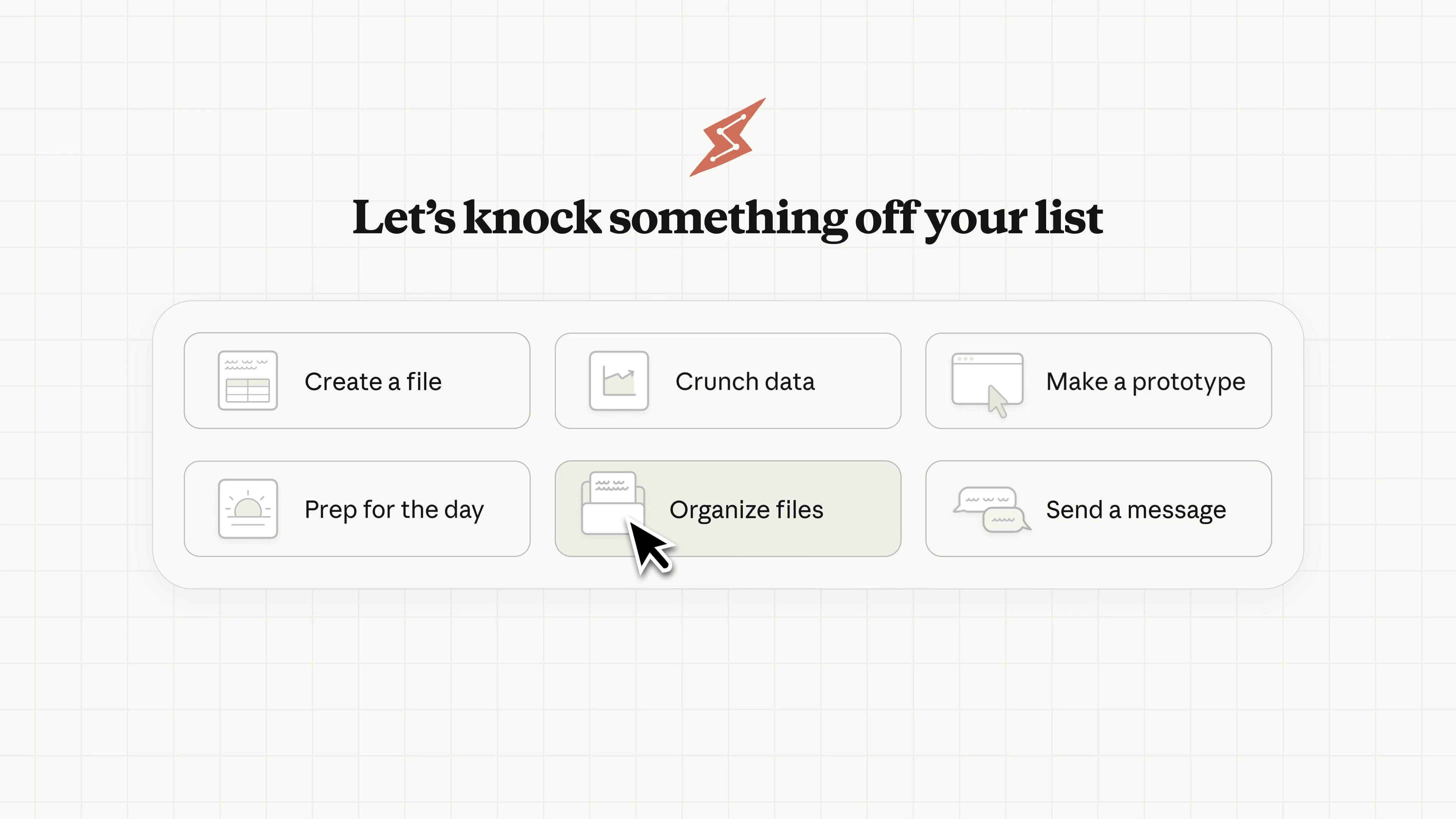
- Visit claude.ai and sign in with your account
- Download the Claude Desktop app for macOS
- Follow the installation wizard
- Sign in with your Claude credentials
Enable Cowork Feature
Once installed, enable Cowork in the Desktop app:
- Open Claude Desktop
- Navigate to Settings → Features
- Toggle on Cowork (Research Preview)
- Restart the app if prompted
Step 2: Granting Folder Access
The key to Cowork's power is giving it access to your files. Here's how to do it safely:
Designate a Working Folder
Recommended folder structure:
~/Documents/CoworkSpace/
├── input/        # Files you want Claude to process
├── output/       # Where Claude saves results
└── projects/     # Ongoing project folders
Security Best Practices
| Do | Don't |
|---|---|
| Grant access to specific project folders | Grant access to entire home directory |
| Use a dedicated "CoworkSpace" folder | Include sensitive data folders |
| Review files before sharing | Share folders with API keys or passwords |
| Revoke access after task completion | Leave broad access permanently enabled |
Step 3: Your First Cowork Task
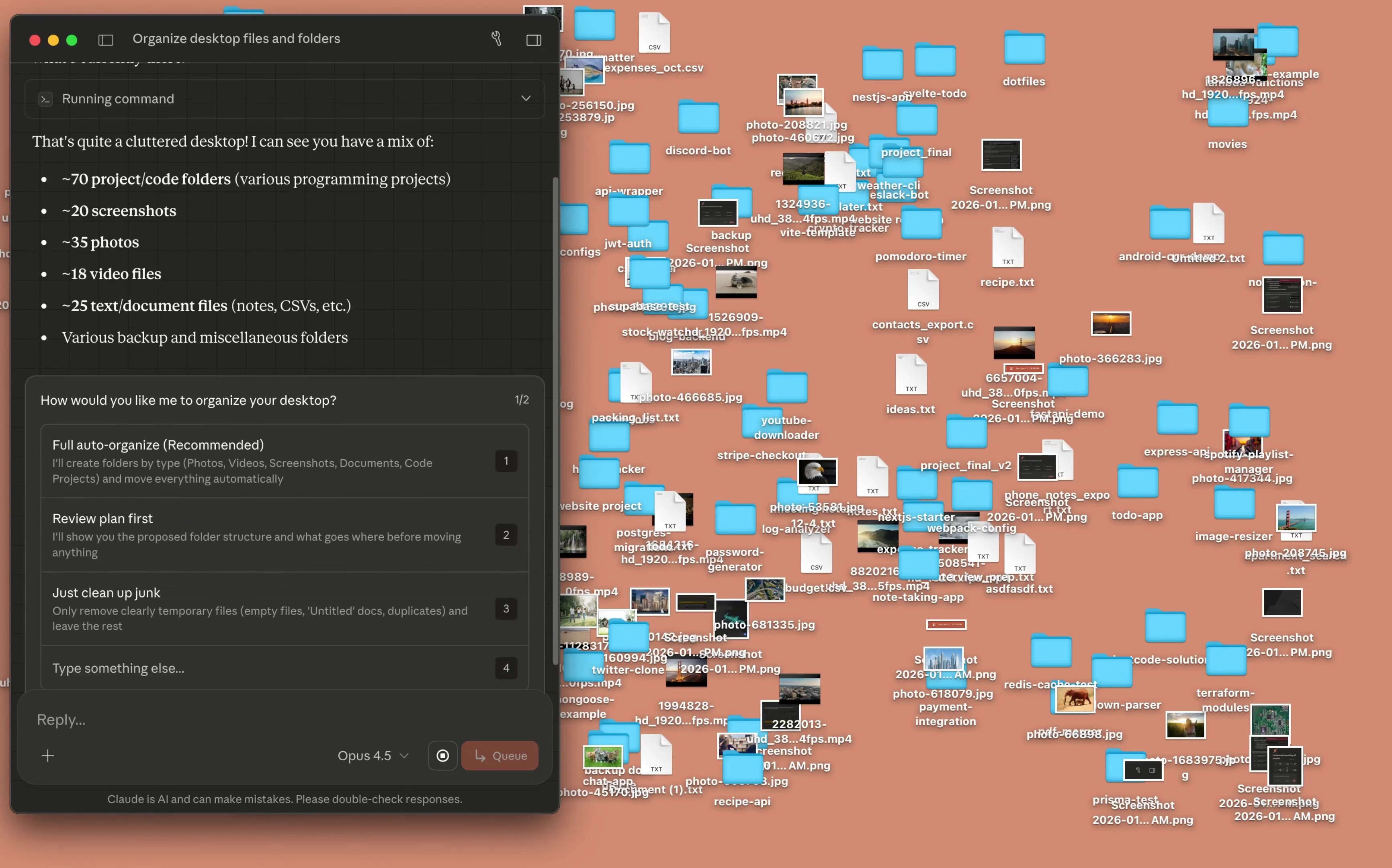
Let's walk through a simple example: organizing a messy downloads folder.
The Task
"Organize my downloads folder by file type, rename files with meaningful names based on their content, and create a summary of what was found."
Step-by-Step Process
- Grant Access: Give Cowork access to your Downloads folder
- Describe the Task: Type your request in natural language
- Review the Plan: Claude will show you what it intends to do
- Approve and Execute: Confirm to let Claude proceed
- Review Results: Check the organized files and summary
Example Output
📁 Downloads (reorganized)
├── 📁 Documents/
│   ├── tax-return-2025.pdf
│   ├── meeting-notes-jan.docx
│   └── project-proposal.pdf
├── 📁 Images/
│   ├── vacation-paris-001.jpg
│   └── screenshot-app-design.png
├── 📁 Code/
│   └── website-backup.zip
└── 📄 organization-summary.md
Step 4: Advanced Workflows
Workflow 1: Research and Reporting

Scenario: You need to research competitors and create a report.
Instructions to Claude:
"Research the top 5 competitors in the AI writing tool space. For each, find their pricing, key features, and recent updates. Create a comparison spreadsheet and a summary report."
What Cowork Does:
- Uses Chrome extension to visit competitor websites
- Gathers pricing and feature information
- Creates an Excel spreadsheet with comparison data
- Writes a comprehensive summary document
Workflow 2: Email and Communication Management
Scenario: Clean up and respond to emails.
Instructions to Claude:
"Review my inbox, categorize unread emails by priority, draft responses for the top 5 urgent ones, and create a task list from emails requiring action."
Requirements: Gmail connector enabled
Workflow 3: Data Analysis from Documents
Scenario: Analyze expense receipts for tax preparation.
Instructions to Claude:
"Process all receipt images in the 'receipts' folder. Extract vendor name, date, amount, and category. Create a spreadsheet organized by month and category, with totals."
Output Example:
| Date | Vendor | Category | Amount |
|---|---|---|---|
| 01/05/2026 | Office Depot | Supplies | $142.50 |
| 01/08/2026 | Zoom | Software | $15.99 |
| 01/12/2026 | Delta Airlines | Travel | $485.00 |
Step 5: Pro Tips and Best Practices
Tip 1: Be Specific in Your Instructions

Bad Example:
"Fix my files"
Good Example:
"Review all PDF files in the 'contracts' folder, identify any that are missing signatures on the last page, and create a list with file names and page numbers where signatures are needed."
Tip 2: Use Progressive Tasks
Break complex work into steps:
- First: "Analyze the files in this folder and tell me what you find"
- Then: "Based on your analysis, suggest an organization scheme"
- Finally: "Implement the organization scheme we discussed"
Tip 3: Leverage the Plan-Review-Execute Cycle
You: "Organize my project files"
Claude: [Shows detailed plan]
You: "Actually, keep the 'archive' folder separate"
Claude: [Updates plan]
You: "Proceed"
Claude: [Executes]
Tip 4: Create Reusable Instructions
Save common workflows as text files that you can copy-paste:
## Weekly Report Generator
1. Review all files updated this week in /projects
2. Summarize key changes and progress
3. Identify blockers or delayed items
4. Create a formatted markdown report
5. Save to /reports/weekly-[date].md
Common Use Cases with Templates
For Product Managers
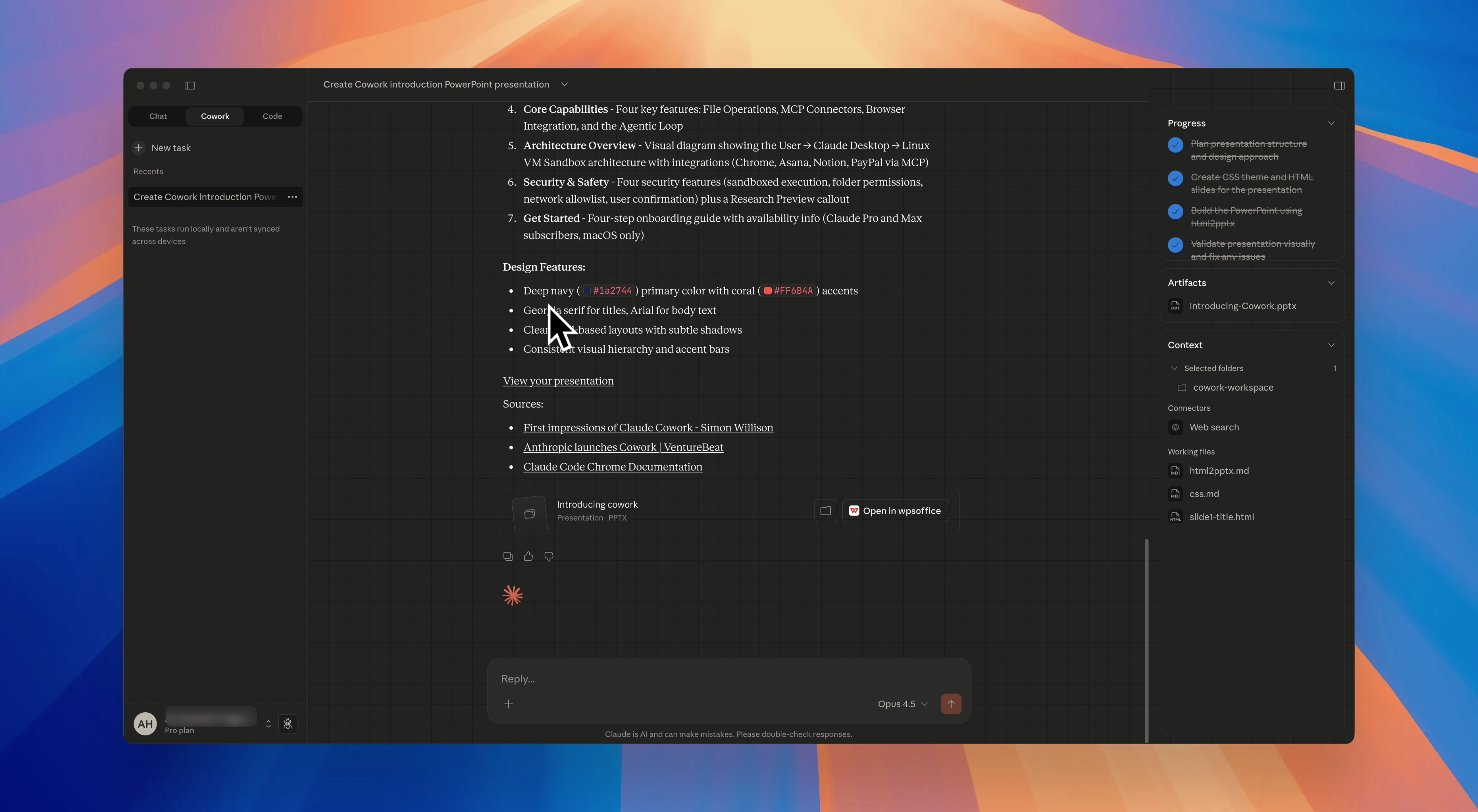
"Analyze all customer feedback files in the 'feedback' folder. Categorize feedback by: feature requests, bugs, UX issues, and praise. Create a prioritized list of the top 10 most mentioned items with frequency counts."
For Content Creators
"Review all draft articles in the 'drafts' folder. For each, assess completion status (ready, needs editing, needs research). Create a publication calendar suggestion based on topics and seasonal relevance."
For Consultants
"Process all client meeting notes from the past month. Extract action items, decisions made, and follow-up tasks. Create a client-by-client summary and a master task list."
For Researchers
"Analyze all PDF papers in the 'research' folder. Extract key findings, methodologies, and citations. Create a literature review outline organized by theme."
Troubleshooting Common Issues
Issue: Claude Can't Access Files
Solution: Re-grant folder access in Settings → Permissions
Issue: Task Takes Too Long
Solutions:
- Break into smaller tasks
- Reduce the number of files being processed
- Be more specific about what you need
Issue: Unexpected Results
Solutions:
- Review Claude's plan before execution
- Provide more specific instructions
- Use examples to clarify expectations
Integrating with Your Workflow
With Chrome Extension
Enable web browsing capabilities:
- Install Claude Chrome extension
- Grant necessary website permissions
- Use only with trusted sites
- Monitor Claude's actions during web tasks
With Third-Party Apps
Connect through Anthropic's Connectors:
- Canva: Design automation
- Gmail: Email management
- Google Drive: Document access
- Slack: Team communication
Measuring Your Productivity Gains
Track your efficiency improvements:
| Task | Manual Time | With Cowork | Time Saved |
|---|---|---|---|
| Expense Report | 2 hours | 10 minutes | 91% |
| File Organization | 1 hour | 5 minutes | 92% |
| Research Summary | 4 hours | 30 minutes | 87% |
| Email Triage | 30 min/day | 5 min/day | 83% |
What's Next?
As you become comfortable with basic tasks, explore:
- Multi-step workflows that combine research, analysis, and output
- Scheduled tasks for recurring work
- Team workflows using shared folders
- Integration with other AI tools in your stack
Claude Cowork transforms how you work by handling the tedious, time-consuming tasks that eat into your productive hours. Start with simple tasks, build confidence, and gradually expand to more complex workflows. The key is to think of Cowork as a capable assistant who needs clear instructions — the better you communicate, the better results you'll get.
Sources: